Until now, using EachRun meant opening a browser and finding the right tab. All three platforms now have a client you install into the system: click the icon on a computer, or open it from the home screen on a phone.
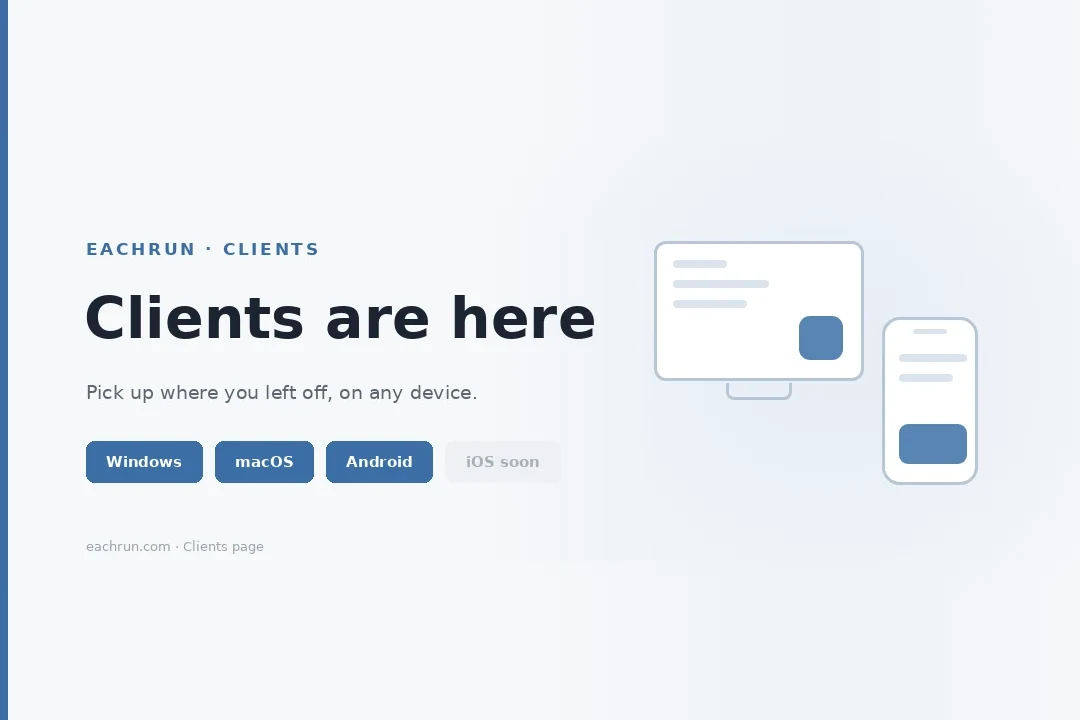
Three platforms, and what each one needs
This release ships installers for three platforms, each with its own requirements and download size:
- Windows. Windows 10 and later, an 89 MB download, installed by running the .exe.
- macOS. macOS 11.0 and later, one build covering both Apple silicon and Intel machines, a 183 MB .dmg. This build is not signed yet, so the first launch needs a right-click on the app icon and Open.
- Android. Android 10 and later, an 84 MB apk you get by scanning a QR code.
iPhone and iPad versions have not been released. Those devices keep using the workspace through a browser in the meantime.
Updates download only what changed, and wait for your click
After installation the client checks for new versions on its own. You do not have to come back to the site to find out whether something shipped.
An update pulls down only the parts that changed rather than the whole installer again. On the 183 MB macOS build, that difference shows up on the very first routine update.
Checking, downloading and installing are three separate steps, and each one waits for you to click. The reason is straightforward: the client is attached to a workspace that runs long tasks. While a task is running, the client will not decide on its own to upgrade and cut it off. You choose when to stop and install. For why long tasks are worth protecting this carefully, see cloud agents and a runtime that never shuts down.
Every client opens the same workspace
The three clients are not three separate copies of your data. They open the same workspace. Start a conversation on the desktop, open your phone, and carry on; sessions, files and projects do not have to be moved between devices, and there is no question of which machine holds the current version.
That follows from how the workspace works in the first place: tasks run in the cloud and do not depend on any one terminal being awake. The client changes the entrance — no browser, no hunting for a tab — not where the data lives.
Project files, discussions and AI conversations stay in the same context; see project discussions and the sharing center for how that is organised, and the EachRun enterprise AI workspace product page for the full scope.
Getting the installer: download it, or have an admin push it
For yourself: go to the Clients page on eachrun.com. It detects the system you are on and recommends the matching build; the Android entry is a QR code you scan to download the apk.
If an install fails, or a group of colleagues needs it at once, an administrator distributes the client from Client releases in the console. Nobody has to look up the right version or check requirements themselves. In a company where device models and OS versions are never uniform, that path saves a lot of one-by-one hand-holding.
Teams not using EachRun yet can run a full cycle through an enterprise pilot first, then decide how to roll the clients out.
FAQ
Which systems do the EachRun clients support?
Windows 10 and later, macOS 11.0 and later (one build for both Apple silicon and Intel), and Android 10 and later. iPhone and iPad versions have not been released yet; those devices still use the workspace through a browser.
macOS says it cannot open the app. What now?
This macOS build is not signed yet. The first time you open it, right-click the app icon, choose Open, and confirm once in the dialog. After that a normal double-click starts it.
Can an update interrupt a task that is still running?
No. Checking, downloading and installing are three separate steps that each wait for you to click, and the client does not upgrade while a task is running. Updates download only the parts that changed rather than the whole installer.
Try it on your own devices
Pick an everyday task that moves between devices, and we will work out client distribution, workspace sizing and permissions together.
Request an enterprise pilot